User guide
Find your way around the Nistor web shell and follow the main journeys, from the first sign-in to incidents, rules and data contracts.
This guide is for the people who use Nistor every day: data engineers, analysts and the people on call for a data platform. Each page follows one journey through the web shell. It says what the journey is for, what you need first, the steps with the labels you see on screen, what you should see, and where to go next.
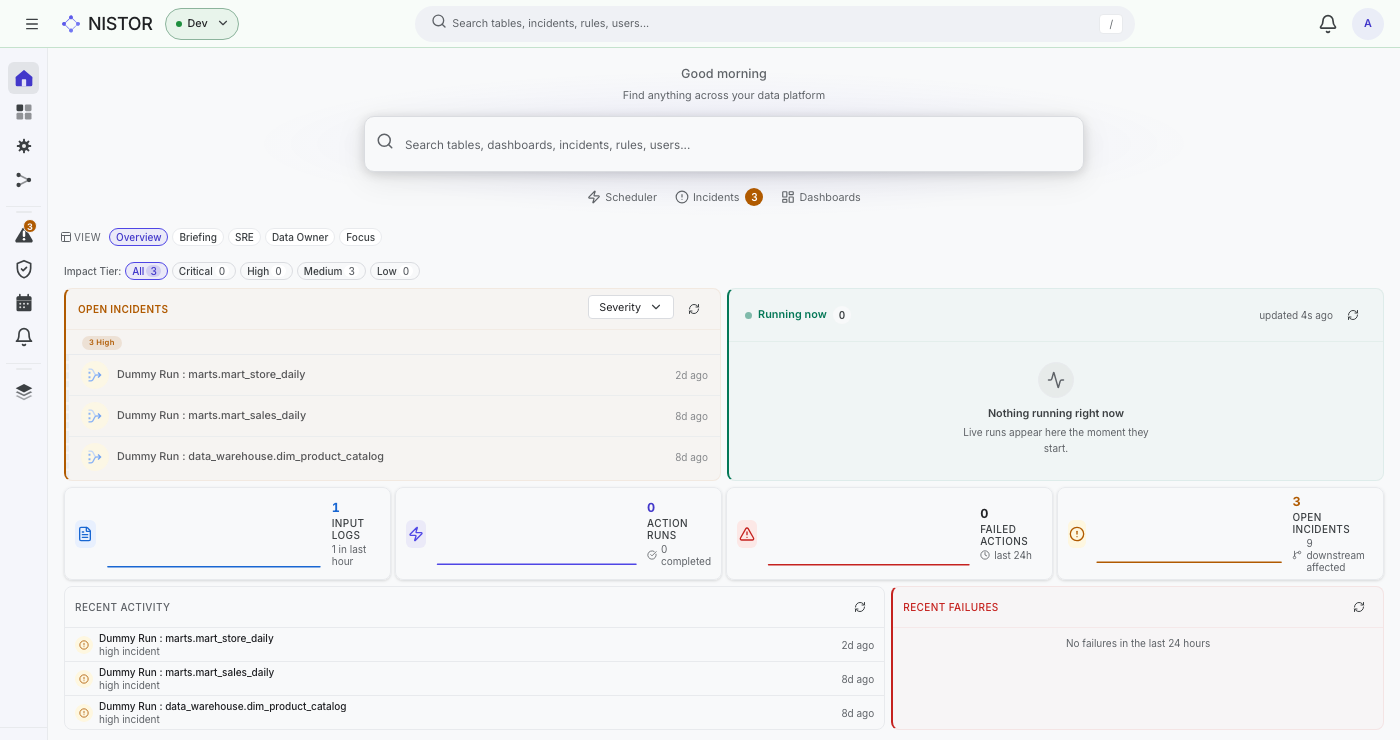
The screenshots come from the synthetic estate that the quickstart seeds: an imaginary retailer with
BigQuery tables, Dataform actions and MicroStrategy documents in a dev environment. Run the quickstart to follow along
with the same data.
The layout of the web shell#
- The header holds, from left to right, the menu button (Toggle navigation), the environment switcher (Dev,
Test or Prod), the search box, the Notification Center bell and the Account menu. Press
/to jump to the search box. - The sidebar groups the pages in sections. Data: Overview, Dashboards, Processing and Lineage. Operations: Incidents, Data Trust, Scheduler and Notifications. Platform, which is closed by default: IAM Admin, Roles & permissions, App Monitoring, Platform Activity, Feedback, Compiler, GitOps and Plugins.
- You only see the pages that your permissions allow. For example, IAM Admin needs
iam:manageand Data Trust needsdatatrust:view. Roles & permissions lists every permission and is open to everyone.
Journeys#
| Page | You want to |
|---|---|
| First sign-in and the home page | sign in, find your way around the home page, get the right permissions |
| Find data: search and node pages | find a table or a job and read everything Nistor knows about it |
| Follow lineage | see what feeds a node and what depends on it, and trace a failure to its source |
| Rules and schedules | see what runs and when, run an action by hand, propose a new rule |
| Alerts and incidents | work an incident from open to resolved, and send alerts to a channel |
| Data contracts | write down what a set of assets must meet, or import an ODCS contract |
| Plugins | see which modules this deployment has, and what each one adds |
Before you start#
- On your own machine: follow the quickstart. It signs you in as the administrator it seeds, so every page is open to you.
- On a shared deployment: ask your administrator for access. Nistor signs people in with their Google identity (see Identity and access). A new user starts with no permissions until an administrator gives them some.
The concepts explain the ideas behind these pages: facts, the graph, rules and incidents.