Alerts and incidents
See what is broken and how far it reaches, work an incident from open to resolved, and route alerts to a chat channel or e-mail.
Goal: know what is broken right now, work each incident to a close, and get told about the next one where your team already talks.
Incidents explains how incidents open, group and close. This page walks through the screens.
Prerequisites#
- You can sign in, and something has failed. The quickstart seeds three open incidents.
- To set up alert channels and policies, you need the
alerts:managepermission.
See what is broken#
- In the sidebar, open Operations → Incidents. The page opens on Health. The incident count on the sidebar icon is the number of unhealthy nodes.
- The banner at the top says whether anything waits for a person (Inbox clear when nothing does). Below it, three figures sum up the situation: UPSTREAM / CAUSE (the unhealthy producers), PLATFORM and DOWNSTREAM / BLAST (the downstream nodes affected).
- Incidents detected counts the incidents of the last 14 days by state, by age (AGING LADDER), by SEVERITY and by TOOL. Choose a figure to filter the board.
- Unhealthy nodes lists each failing node with its state, its incidents, how long ago it started and its environment. On each row you can open the worst incident, open the node in Triage, or mark it as a known issue.
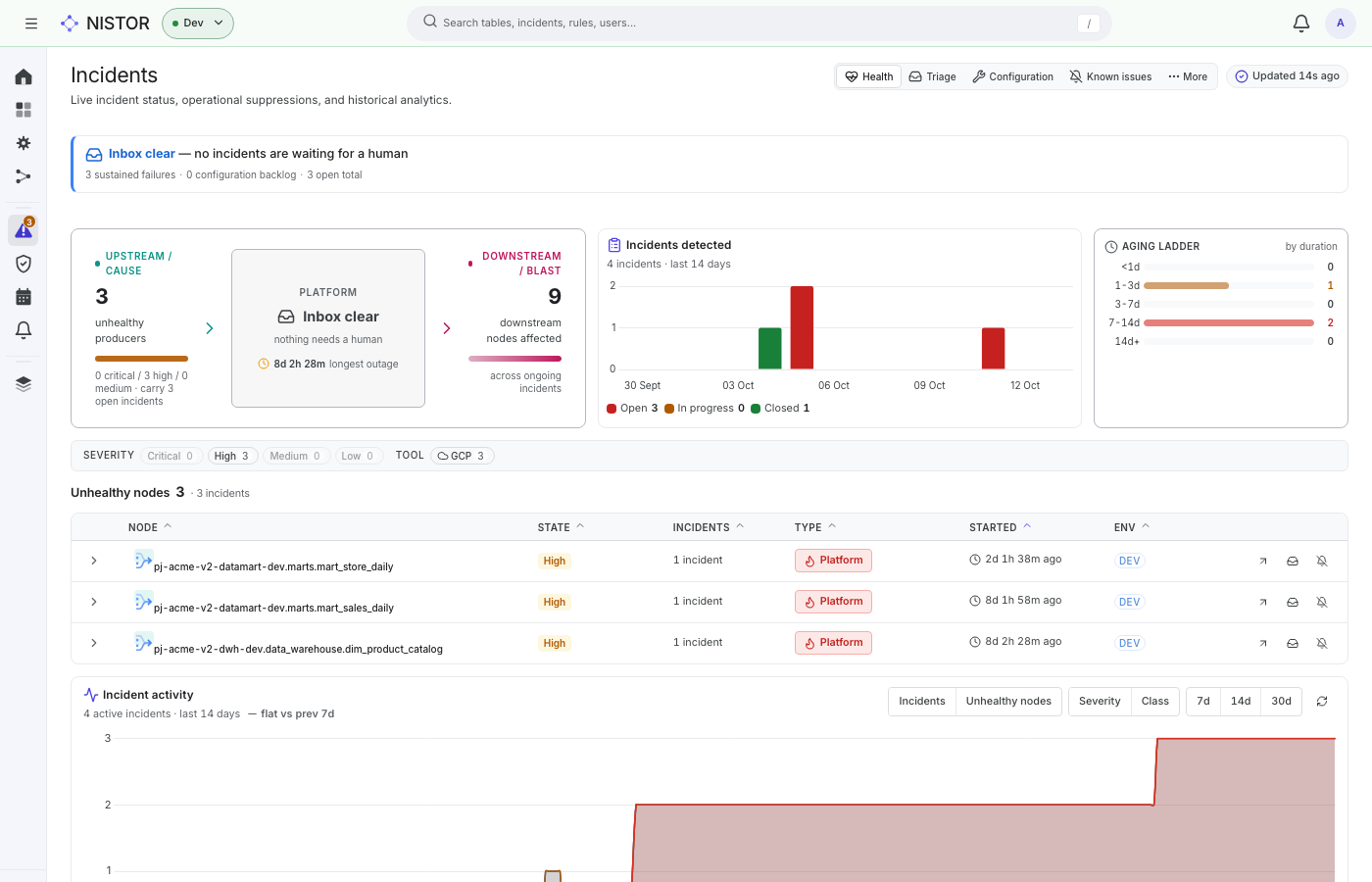
The other views are Triage (the incidents that wait for a person), Configuration (incidents caused by missing access or setup), Known issues, and under More: All incidents, Groups and Analytics.
Work an incident#
- Open an incident, for example with the open-worst-incident action on a node's row, or from More → All incidents.
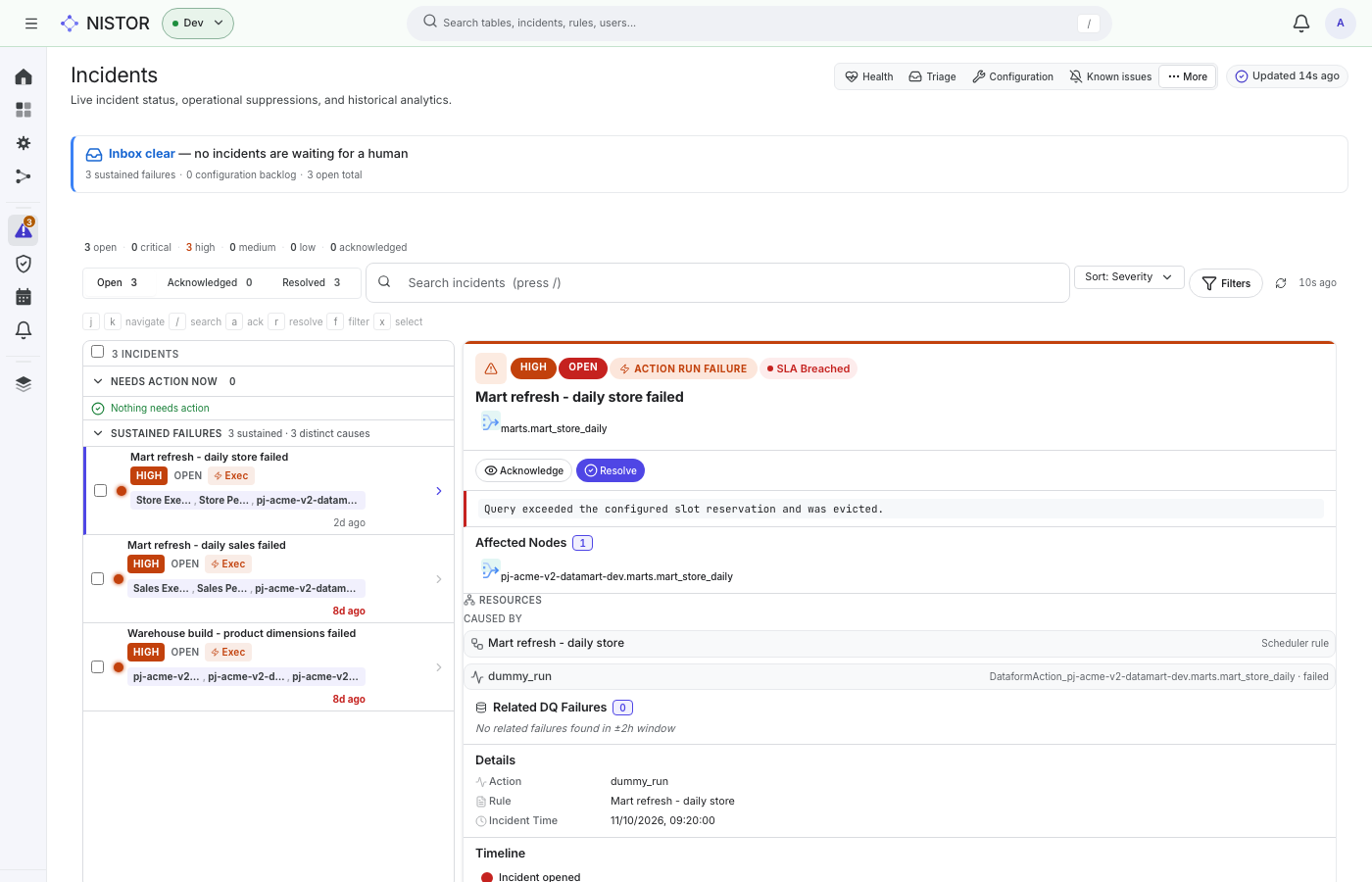
- The list on the left has Open, Acknowledged and Resolved filters, Search incidents (press /), a
Sort menu and Filters. The keyboard works too:
jandkmove,aacknowledges,rresolves,ffilters andxselects. - The incident on the right shows its severity, its state, its kind (for example ACTION RUN FAILURE) and, when a target was missed, SLA Breached. Then come the error message, the Affected Nodes, what it was CAUSED BY (the rule and the action run), the Details, the Timeline, the SLA Targets (Time to Acknowledge and Time to Resolve), the Impact and the Discussion.
- Choose Acknowledge to tell the others you are on it. The Acknowledge Incident dialog opens; choose Confirm.
- Fix the cause. When a later run of the same rule succeeds on the incident's nodes, Nistor closes the incident itself; a run you start by hand from a node's Execute tab belongs to no rule and does not close it. To close the incident yourself, choose Resolve: the Resolve Incident dialog asks How was this incident fixed? (a required answer), then choose Confirm Resolution.
- Write what you found in the Discussion and choose Comment.
What the quickstart shows#
The seed writes six incidents: three open and three resolved, so the list reads Open 3 and Resolved 3. The three open ones are high-severity failures of Dataform actions, such as Mart refresh - daily store failed with the message Query exceeded the configured slot reservation and was evicted. Both SLA targets show Breached, because the seeded incident is days old.
Route alerts to your team#
Alerts reach people through channels. Policies decide which events go to which channel.
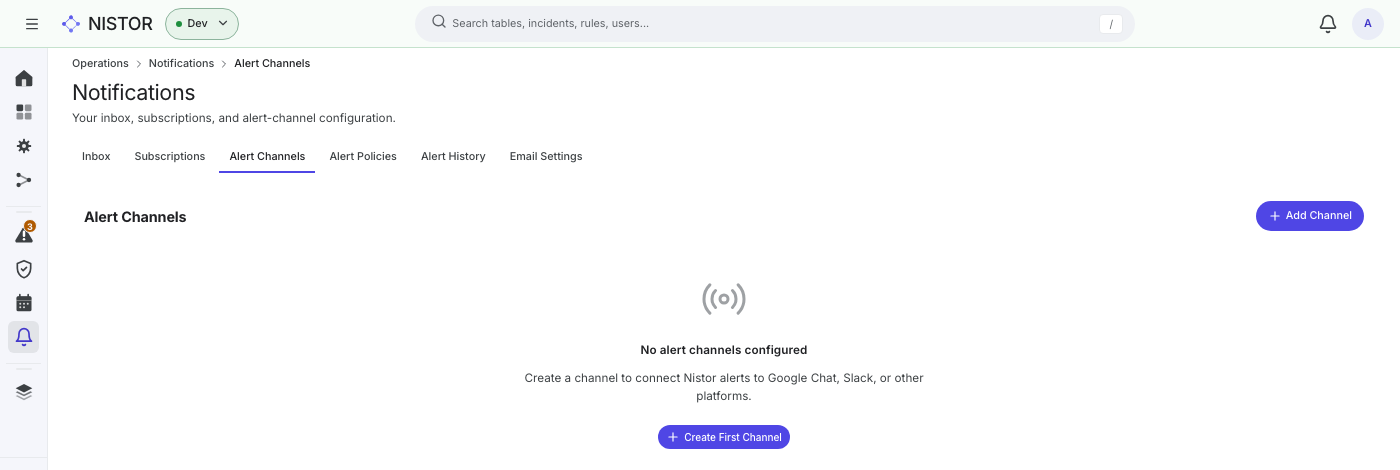
- In the sidebar, open Operations → Notifications. The tabs are Inbox, Subscriptions, Alert Channels, Alert Policies, Alert History and Email Settings.
- On Alert Channels, choose Add Channel. In Create Channel:
- Name, and an optional Description.
- Channel Type: Google Chat, Google Chat (DM), Google Chat (app — interactive buttons), Slack, Microsoft Teams, Email, In-app (Inbox) or Generic Webhook.
- The address for that type: a Webhook URL, a Target Email, a Google Chat space, or e-mail Recipients with an optional From Name.
- Environment: All environments, Production, Test or Development.
- Choose Create.
- On the channel's row, choose Test to send a test message, and check that it arrives. The test message of an In-app (Inbox) channel shows in your Inbox after you reload the page.
- On Alert Policies, choose Add Policy. In Create Policy:
- Name and Description.
- Scope: Global, Compiler, Rule or Node, with a Scope ID for the last three.
- Resource Types and Event Types (for example Action Failure, All Retries Exhausted, Incident Created, Incident Resolved, Long-Running Action).
- Minimum Severity and the Channels to use.
- Cooldown (seconds) and the Delivery Mode: Immediate, Batched (with a Batch Window (minutes)) or Digest (with a Digest Schedule).
- Choose Create.
- Alert History lists what was sent, and whether it failed or waits in a queue.
For e-mail, an administrator first fills in the SMTP server under Email Settings and chooses Save Settings.
Test SMTP Connection appears once the settings are saved, and sends a test e-mail. Channels and policies can also be kept as code with nistor alerts (see the
CLI).
To follow one node without a policy, open Subscriptions (or Subscribe to a node in an empty Inbox): your Inbox then gets a notification when that node's runs complete.
Next#
- Stop the next failure before it happens: Rules and schedules.
- Promise what consumers can expect: Data contracts.