Rules and schedules
See which rules run what and when, read a rule's health, run an action by hand, and request a new rule.
Goal: know what Nistor runs, when, and how well it goes, and get a new rule added.
A rule says: when this happens (an event or a cron schedule), if these conditions hold, run this action on these nodes. Rules and scheduling explains rules in full.
Prerequisites#
- You can sign in. The Scheduler page comes with the scheduling module, listed as Scheduling & Orchestration on the Plugins page.
- To approve rule requests you need the
rules:approvepermission, and Nistor needs a connection to the Git repository where the rules live (see GitLab).
Browse the rules#
- In the sidebar, open Operations → Scheduler. The page opens on the Scheduling Rules tab.
- Narrow the list with the FILTERS panel: EXECUTOR TYPE, STATUS, PRIORITY, DATE, NODE COUNT, ACTIONS (7D), and Show externally managed (Sifflet) under EXTERNAL RULES. Search rules... searches by name.
- Read a rule's card from left to right: its name, status and priority, then APPLIES_TO (the nodes), WHEN (the cron schedule and time zone, or the events), IF (conditions), ON (the nodes the action targets, often the same as APPLIES_TO), DO (the action type and its settings) and STATS (nodes, actions in the last 7 days, version). JSON shows the rule's definition and History its versions.
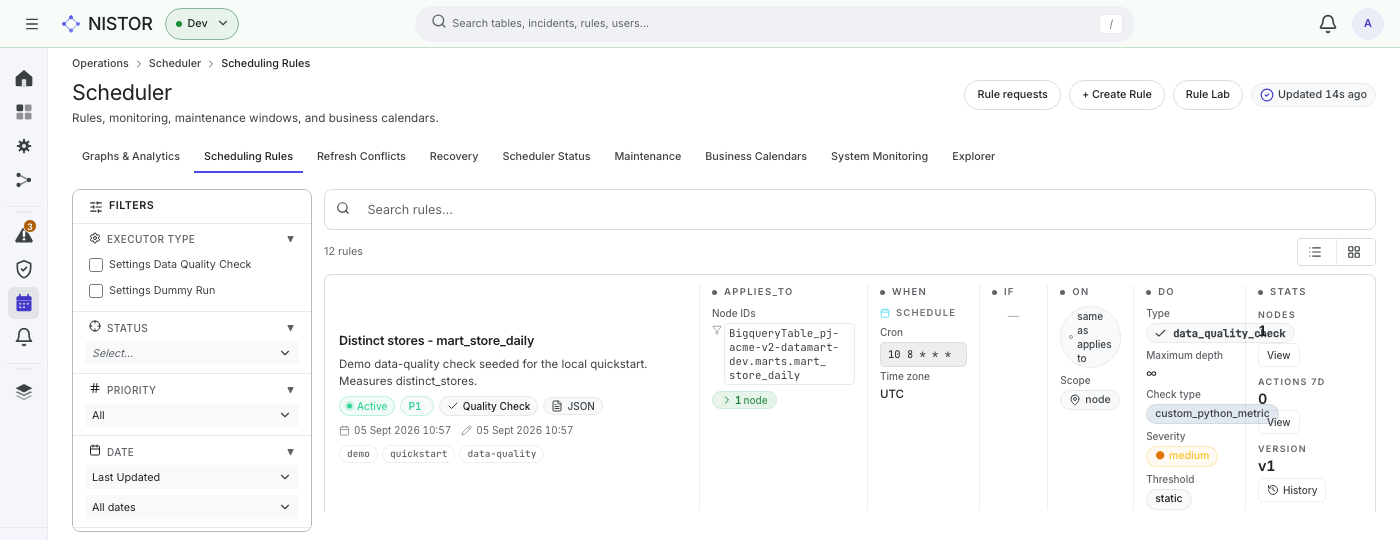
The other tabs cover the rest of scheduling: Graphs & Analytics, Refresh Conflicts, Recovery, Scheduler Status, Maintenance (maintenance windows), Business Calendars, System Monitoring and Explorer.
Read a rule's health#
- Choose a rule's name. Its page opens on Overview.
- The first line sums the rule up, for example: Daily at 07:20 (UTC), runs dummy_run on … → 1 node.
- The figures show the runs in the last 30 days, the SUCCESS RATE, the AVG DURATION and the COST. TOP FAILURE and TOP FAILING NODES show what fails most often.
- DEFINITION shows APPLIES TO, WHEN, CONDITIONS and THEN.
- The other tabs are Nodes impacted, Run timeline, Incidents, Permissions and Activity. Open worst incident jumps to the rule's worst open incident.
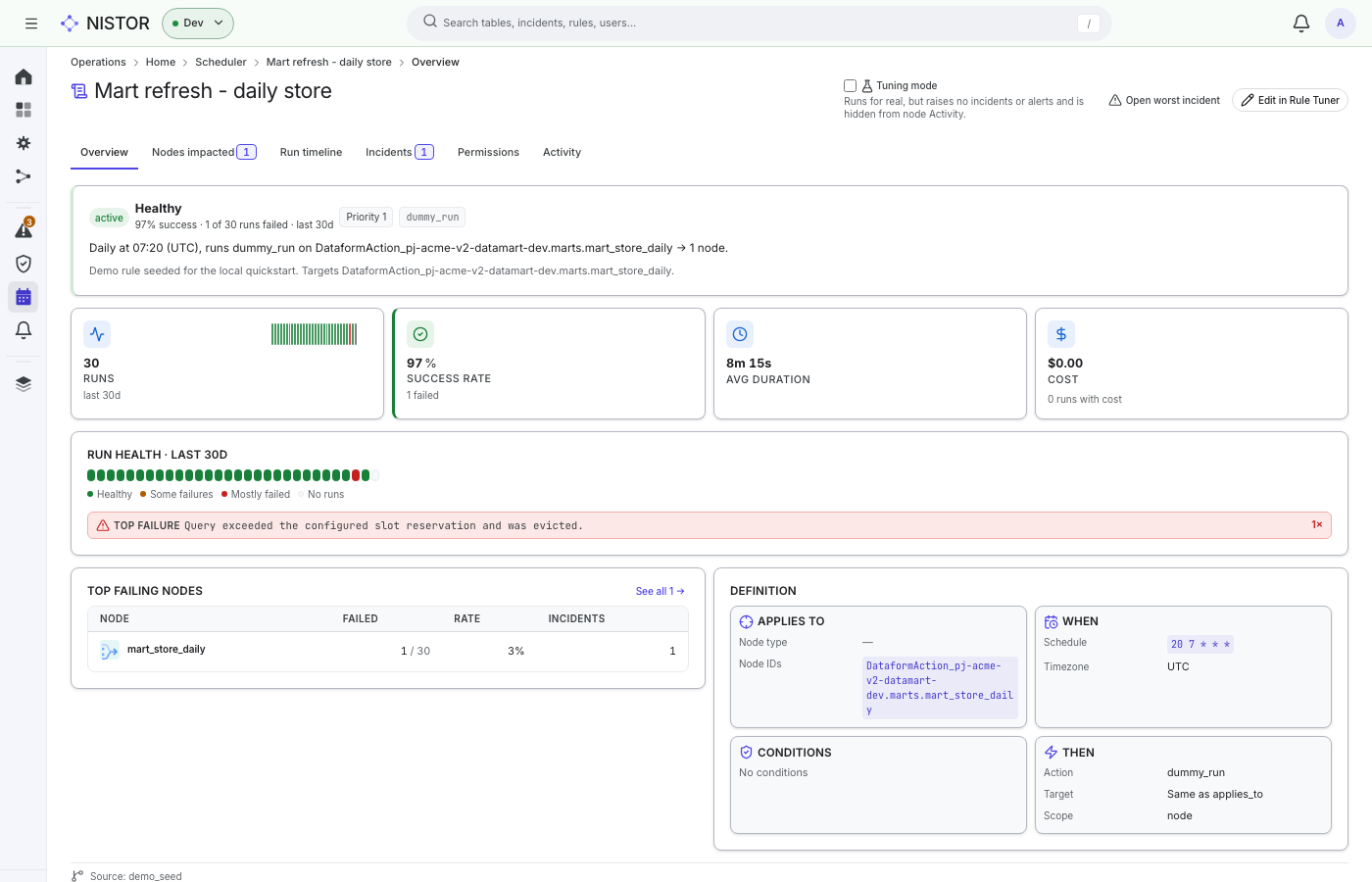
On the quickstart stack, open Mart refresh - daily store: 30 runs in 30 days, 97% success, one failure (Query
exceeded the configured slot reservation and was evicted.), and one incident.
Run an action by hand#
- Open the node's page and choose the Execute tab.
- Pick the action, for example Dummy action (test), which simulates an outcome so that you can test rule triggers, incidents, retries and chains.
- Choose Run. Nistor locks the node and runs the action as the scheduler would, and the status updates on the page.
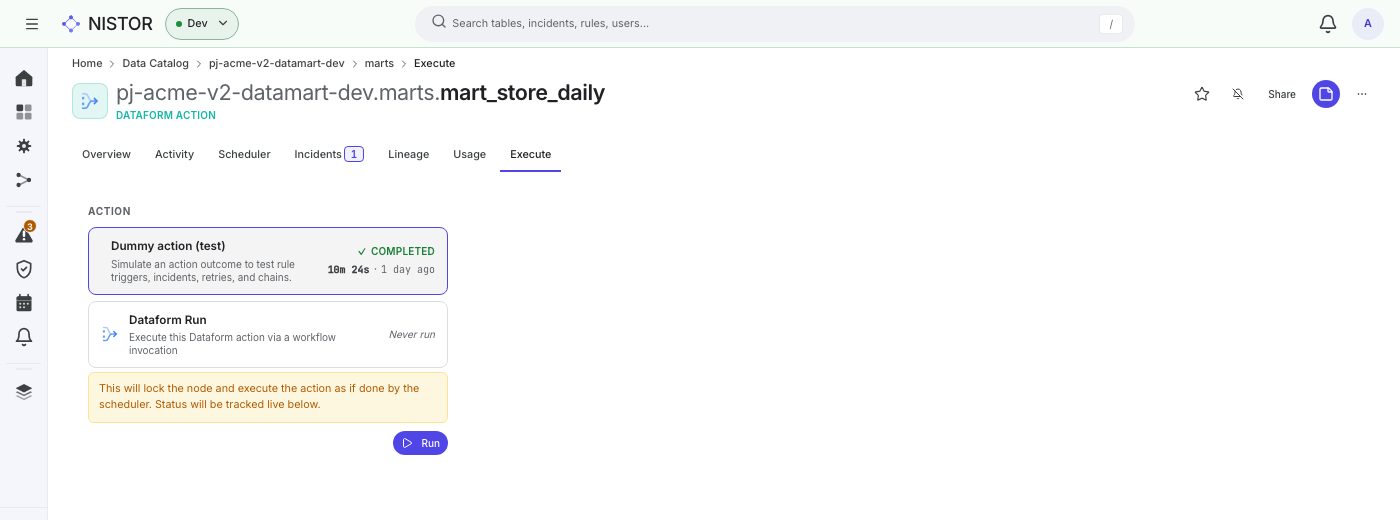
On the quickstart stack, the Dummy action (test) card of mart_store_daily already shows COMPLETED from the
seeded run. Choose Run: a moment later the card still reads COMPLETED, and its time changes to now. If the page reports that it could not connect to the scheduler service, check that the scheduler role is running
(on the quickstart, docker compose ps lists it).
Ask for a new rule#
The web shell does not create live rules directly: rules are kept as files in a Git repository, and a person approves each change.
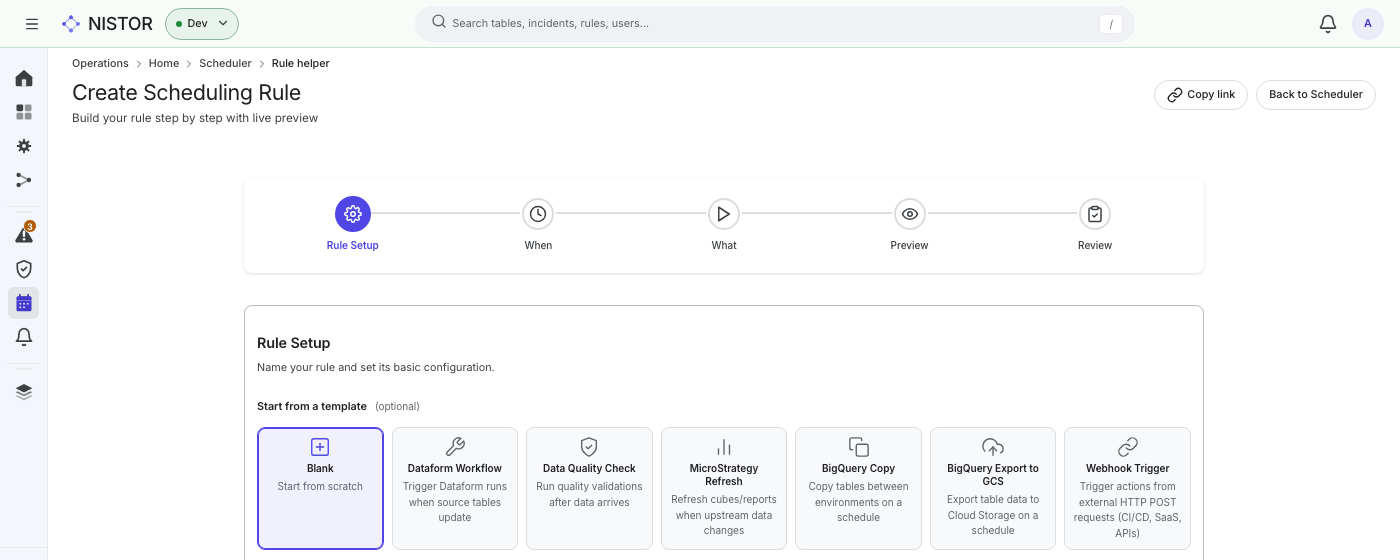
- On the Scheduler page, choose + Create Rule. The Create Scheduling Rule helper opens.
- Rule Setup: pick a template under Start from a template (Blank, Dataform Workflow, Data Quality Check, MicroStrategy Refresh, BigQuery Copy, BigQuery Export to GCS, Webhook Trigger), then fill in Name, Priority (1 is the highest, 100 the lowest), Status, Description and Tags. Choose Next.
- When: a cron schedule, or the events that trigger the rule, plus the execution conditions. This step also selects the nodes the rule listens to: Node Type, Node ID Patterns, Tags and Exclude Node IDs.
- What: the action and its target nodes.
- Preview (Preview fires): pick one of the matched nodes, and the helper replays its recent events against your draft to show when the rule would have fired. When the trigger matches no node, it says No nodes match this trigger.
- Review: check each section (choose one to go back and edit it), then choose Submit for review.
Your request is listed under Rule requests → My requests. A reviewer finds it in the Review queue, then approves it, rejects it or sends it back, and an approval opens a merge request with the rule file. For a request in plain words instead of a full rule, choose Rule requests → Request a rule → Quick request.
Teams that keep their rules as code can skip the web shell and use nistor rules validate and nistor rules sync (see
Rules as code).
Next#
- When a run fails, Alerts and incidents.