Data contracts
Keep favourites on the assets you care about, write a data contract for them, or import an ODCS contract.
Goal: write down what a set of data assets must meet (fresh by a given hour, a minimum volume, an expected schema, a quality pass rate) and see when they fall short.
Data trust explains favourites, monitored assets, contracts and how compliance is scored.
Prerequisites#
- You can sign in and hold
datatrust:view. Creating or changing a contract needsdatatrust:edit. - The assets the contract covers are monitored assets. The contract editor only offers assets that are already
monitored. An asset is added to monitoring through the API (
POST /api/v1/data-trust/assets, withdatatrust:edit), or by importing an ODCS contract that binds to a node (POST /api/v1/odcs/import, alsodatatrust:edit): the import creates the node's monitored asset. The web shell has no other form for it.
Start from your favourites#
- On any node's page, choose the star to add the node to your favourites.
- In the sidebar, open Operations → Data Trust. The Favorites tab lists your favourites and whether any of them needs attention. New group gathers favourites into a group that you can follow as one chain.
- Data Weather at the bottom forecasts which assets are likely to miss their freshness target.
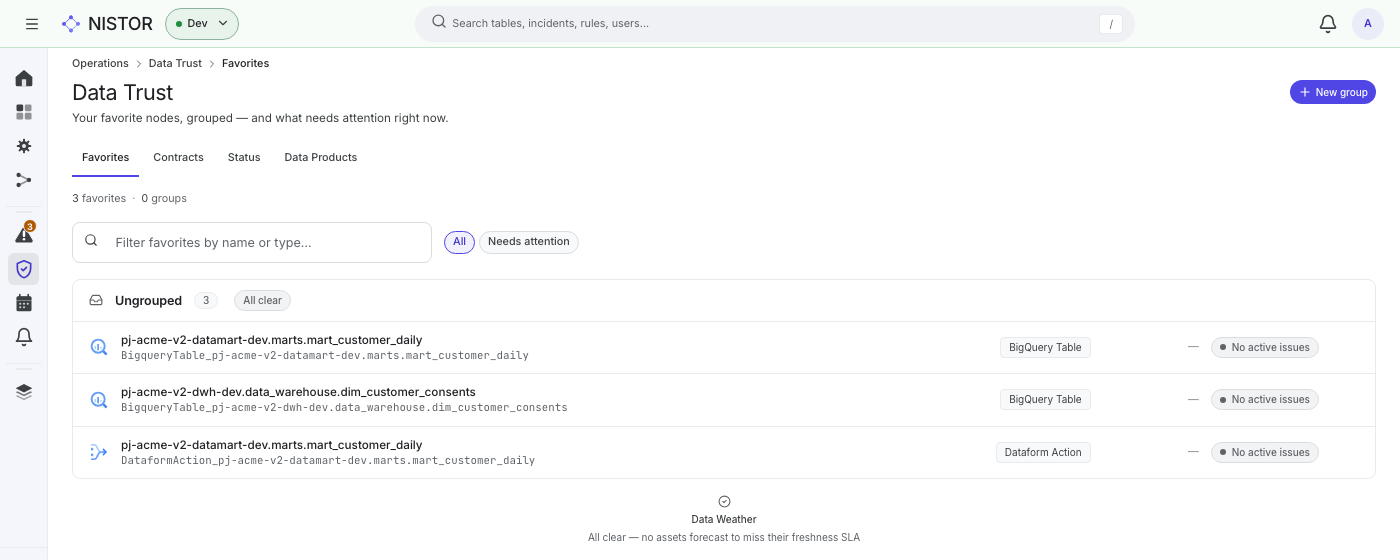
On the quickstart stack, the seeded administrator already has three favourites, all marked No active issues.
Write a contract#
-
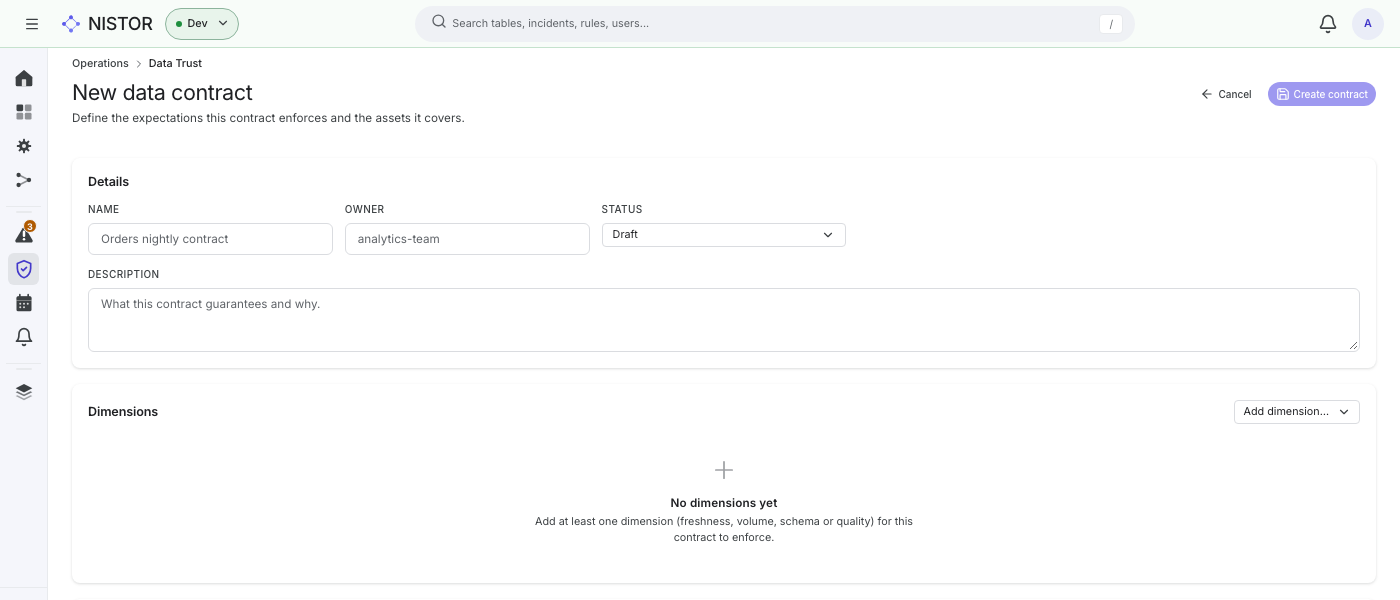
On Data Trust, open the Contracts tab and choose New contract.
-
Under Details, fill in Name, Owner, Status (Draft, Active or Deprecated) and Description.
-
Under Dimensions, open Add dimension… and add one or more of:
- Freshness: an SLA (hours).
- Volume: Min rows and Max delta %.
- Schema: the Expected columns (comma-separated).
- Quality: a Min pass rate.
Each dimension also has a Target and a Window (days).
-
Under Assets covered, tick the monitored assets the contract applies to.
-
Choose Create contract.
What you should see#
The Contracts tab lists the contract with its status and the number of assets covered. Its page shows the compliance By dimension and the Open breaches. A breach of an active contract can open an incident (see Alerts and incidents).
On the quickstart stack, the list is empty (No data contracts yet) and the form says No monitored assets available to attach. The seed creates no monitored asset.
Import an ODCS contract#
Contracts written in the Open Data Contract Standard (ODCS) live under Contracts → ODCS. Choose Import ODCS
and paste or upload the YAML document. Nistor projects its schema, quality rules and SLAs onto the asset it governs.
ODCS covers the format, the export and the nistor odcs commands.
Next#
- Watch the contract's breaches arrive as incidents: Alerts and incidents.