First sign-in and the home page
Sign in to Nistor, read the home page, switch environments and get the permissions you need.
Goal: sign in, understand what the home page tells you, and make sure you can see the pages you need.
Prerequisites#
- A running Nistor. On your own machine, the quickstart is enough. On a shared deployment, you need its address.
- On a shared deployment, your Google account must be allowed through Identity-Aware Proxy, and its e-mail domain must be one that Nistor registers. Your administrator sets both up (see Identity and access).
Steps#
- Open the address of your Nistor in a browser.
- On a shared deployment, Google asks you to sign in first. There is no Nistor password.
- On the quickstart stack there is no sign-in step. You are the seeded administrator,
admin@example.comunless the stack was started with anotherNISTOR_ADMIN_EMAIL.
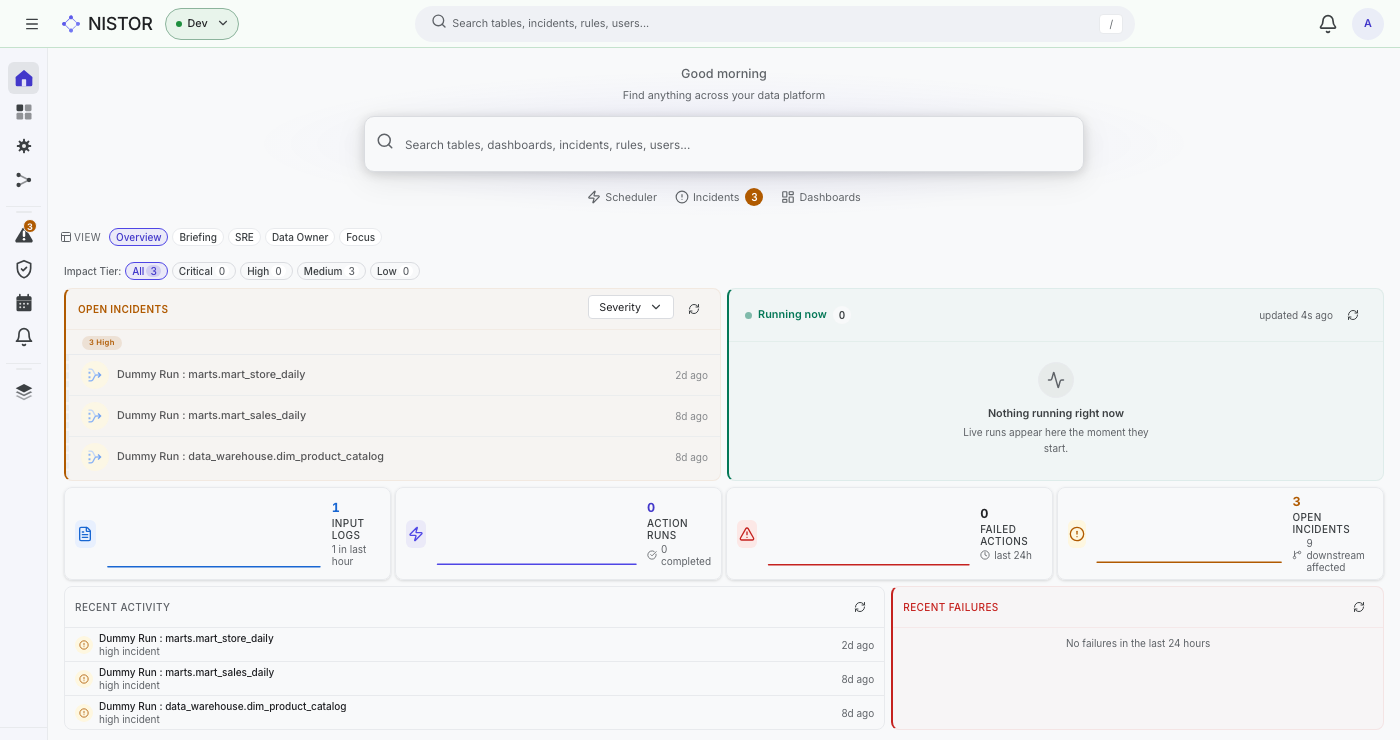
- Look at the home page. It opens on the Overview view, and the buttons next to VIEW switch to another
layout:
- Overview: open incidents and what is running now, then the counters, then recent activity and failures.
- Briefing: your brief, the incident with the widest impact, then what is running, your inbox and popular nodes.
- SRE: today's risks, what is running, what is failing, and what to act on.
- Data Owner: the assets you own, with their health, freshness and the incidents assigned to you.
- Focus: only the top incident.
- Under Impact Tier, pick Critical, High, Medium or Low to show only the incidents of that impact, or All.
- Use the environment switcher in the header (it reads Dev on the quickstart) to move between Dev, Test
and Prod. Every page shows the environment you pick. The address keeps it as
?env=…, so a link you share opens on the same environment. - Open the Account menu (your initial, top right). It shows the address you are signed in with, an Admin mark if you are an administrator, the Theme choice (Light, Dark or System), Help & wiki and Give feedback. There is no sign-out entry: on a shared deployment, Identity-Aware Proxy handles your session.
What you should see#
On the quickstart stack, the Open incidents panel lists the three open incidents of the seed, all on Dataform
actions, such as marts.mart_store_daily. The counters below show input logs, action runs, failed actions and open
incidents. Recent activity lists the latest runs and incidents. If a panel
says it failed to load, see Troubleshooting.
If a page is missing#
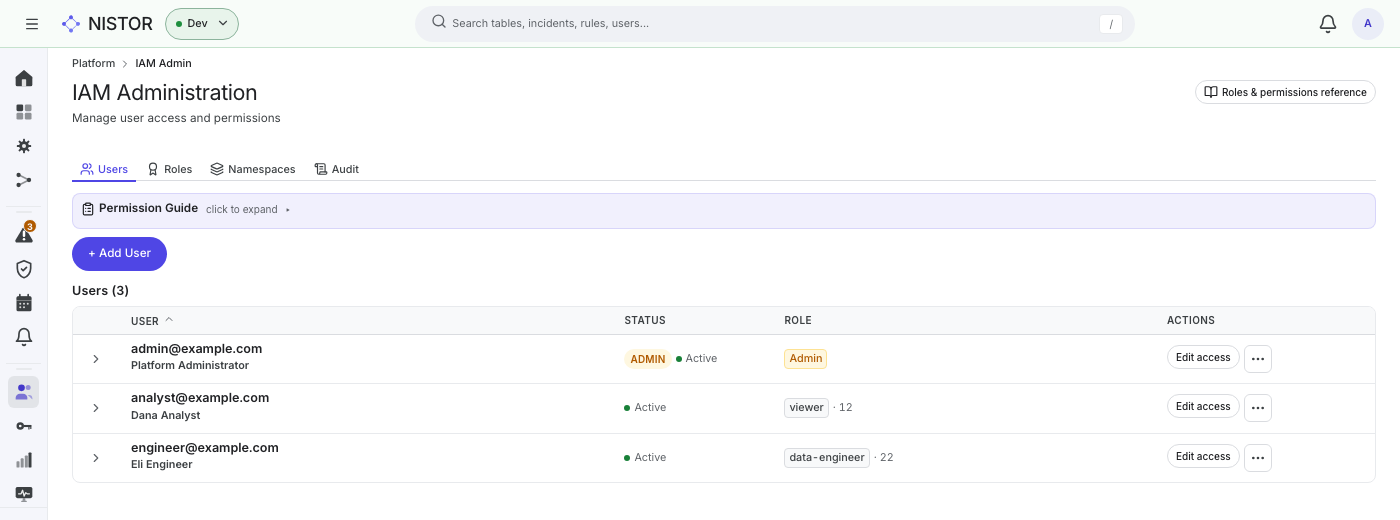
The sidebar only shows the pages that your permissions allow. Open Platform → Roles & permissions to see which permission each page needs, then ask an administrator for it.
Administrators give permissions in Platform → IAM Admin:
- On the Users tab, find the person. To add someone before they sign in for the first time, choose + Add User, fill in Email and Display Name, and choose Create User.
- Choose Edit access on the person's row.
- Pick a role, or open Customize permissions to tick single permissions.
- Choose Save changes.