Follow lineage
Use the lineage explorer to see what feeds a node and what depends on it, and walk from a failure to its cause.
Goal: see where a node's data comes from and where it goes, and find the upstream failure behind a problem.
Lineage and impact explains how Nistor builds the graph. This page is about reading it.
Prerequisites#
- You can sign in, and the graph has nodes (the quickstart seeds one).
Steps#
- In the sidebar, open Data → Lineage. The Lineage explorer opens with a list on the left, the graph in the middle and a summary of the selected node below it.
- Choose a starting node in the EXPLORE GRAPH list on the left:
- Recently failing: nodes whose runs failed lately.
- Most impacted: the nodes that carry open incidents.
- My watched: the nodes in your favourites.
- Browse: every node, as a tree.
- Or type in Search any node….
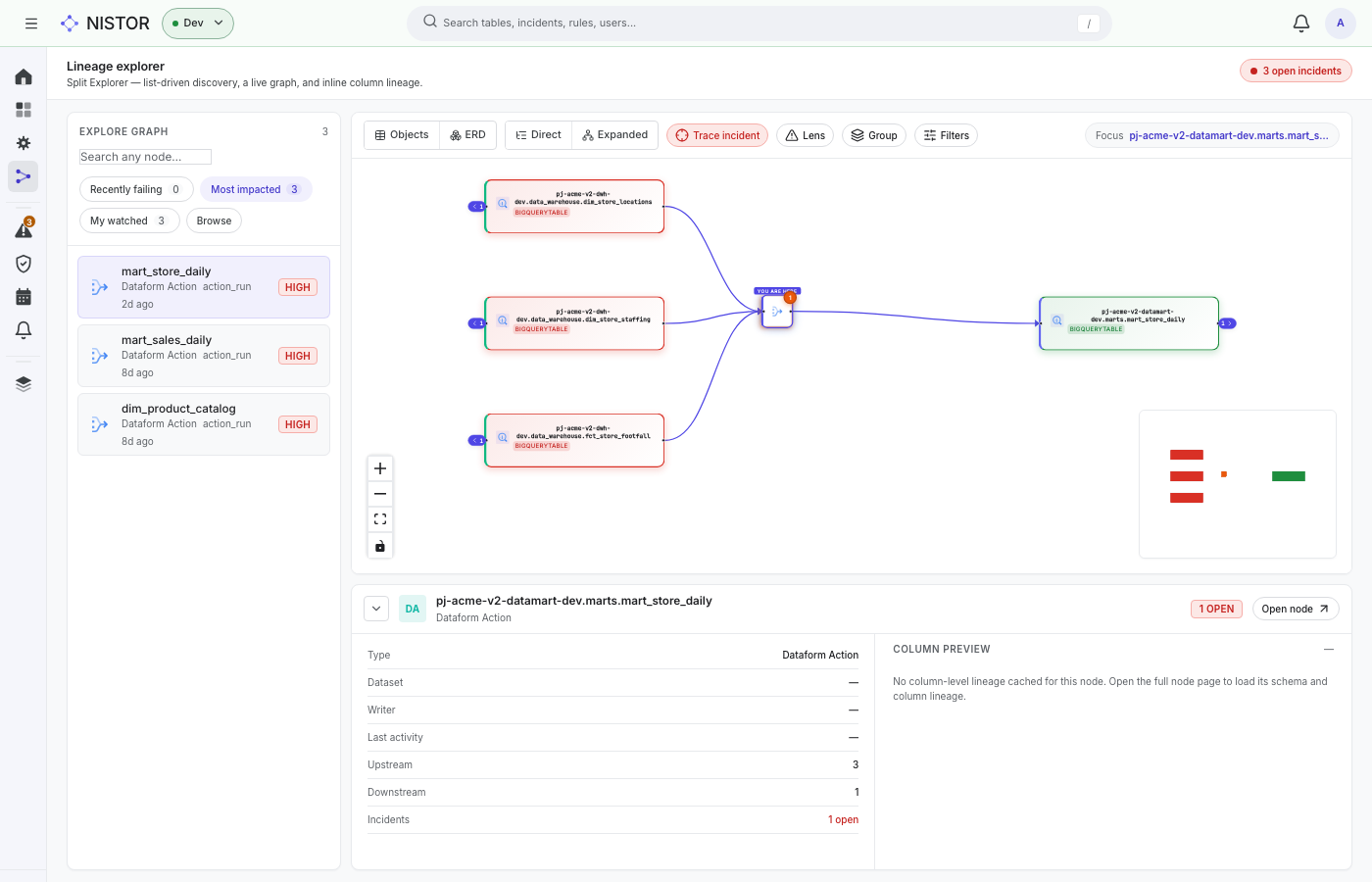
- The graph centres on that node (marked YOU ARE HERE) and the toolbar's Focus shows its name. Upstream nodes are on the left, downstream nodes on the right. A small arrow on a node's edge, such as Expand 1 upstream node, adds the next level.
- Change what the graph shows with the toolbar:
- Objects shows tables, views and actions. ERD shows the entity-relationship diagram.
- Direct keeps first-degree relationships only. Expanded shows the full lineage, up to three levels.
- Trace incident walks upstream to the nearest node with an ongoing incident.
- Lens colours the canvas by incident severity. Group groups the nodes by project. Filters hides node types or projects.
- Read the summary under the graph: the node's Type, Dataset, Writer, Last activity, how many nodes are Upstream and Downstream, its open Incidents, and a COLUMN PREVIEW when column lineage is known. Open node opens its full page.
What you should see#
On the quickstart stack, pick mart_store_daily under Most impacted. The graph shows three warehouse tables
upstream (dim_store_locations, dim_store_staffing, fct_store_footfall), the Dataform action in the middle with an
open-incident mark, and the mart table it writes downstream. The summary reads Upstream 3, Downstream 1 and
Incidents 1 open.
The column preview stays empty on the quickstart: the seeded graph has no column lineage.
Next#
- The node page's Lineage tab shows the same graph for one node (see Find data).
- When a failure upstream breaks things downstream, Alerts and incidents shows the blast radius.