Find data: search and node pages
Search across tables, jobs, incidents, rules and people, then read a node's page, its runs, rules, incidents and neighbours.
Goal: find a table, a job or a report, and read everything Nistor knows about it on one page.
Every object that Nistor observes is a node of its graph: a BigQuery table, a Dataform action, a MicroStrategy document, a Pub/Sub subscription and so on. Concepts explains where nodes come from.
Prerequisites#
- You can sign in (see First sign-in).
- At least one tool has filled the graph. The quickstart seeds a graph of about a hundred nodes.
Search#
- Click the search box in the header, or press
/. With the box empty, it lists the pages you opened lately under Recently viewed. - Type a few letters of a name, for example
store. The results come in groups: Users, Catalog Nodes, Incidents, Scheduling Rules and, when the Sifflet tool is set up, Sifflet Rules. A node with an open incident shows a coloured count next to its name. - Choose a result. A node opens on its own page. An incident or a rule opens on its page under Incidents or Scheduler.
Browse by kind#
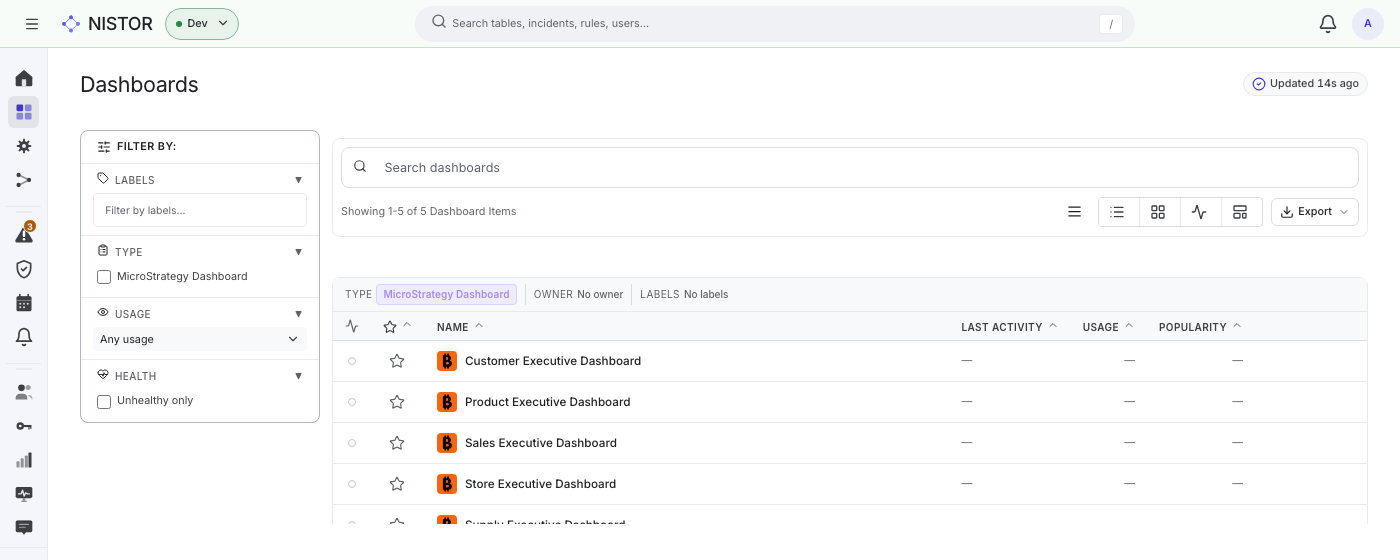
Data → Processing lists what moves or serves data: Dataform actions, and BI reports and subscriptions. Data → Dashboards lists the BI dashboards. Both pages work the same way:
- Type in Search Processing Items (or Search dashboards) to narrow the list by name.
- Use FILTER BY on the left. Both have LABELS, TYPE and HEALTH (Unhealthy only). Processing adds LAST ACTIVITY, TRIGGER ACTIONS, TRIGGERED BY, SCHEDULING RULES, ANCESTORS and DESCENDANTS. Dashboards adds USAGE.
- Read each row: the name, the type, the last activity (the last run and how long it took), and a warning count when the node has open incidents. The star adds it to your favourites.
- Choose a row to open the node's page. Export saves the list.
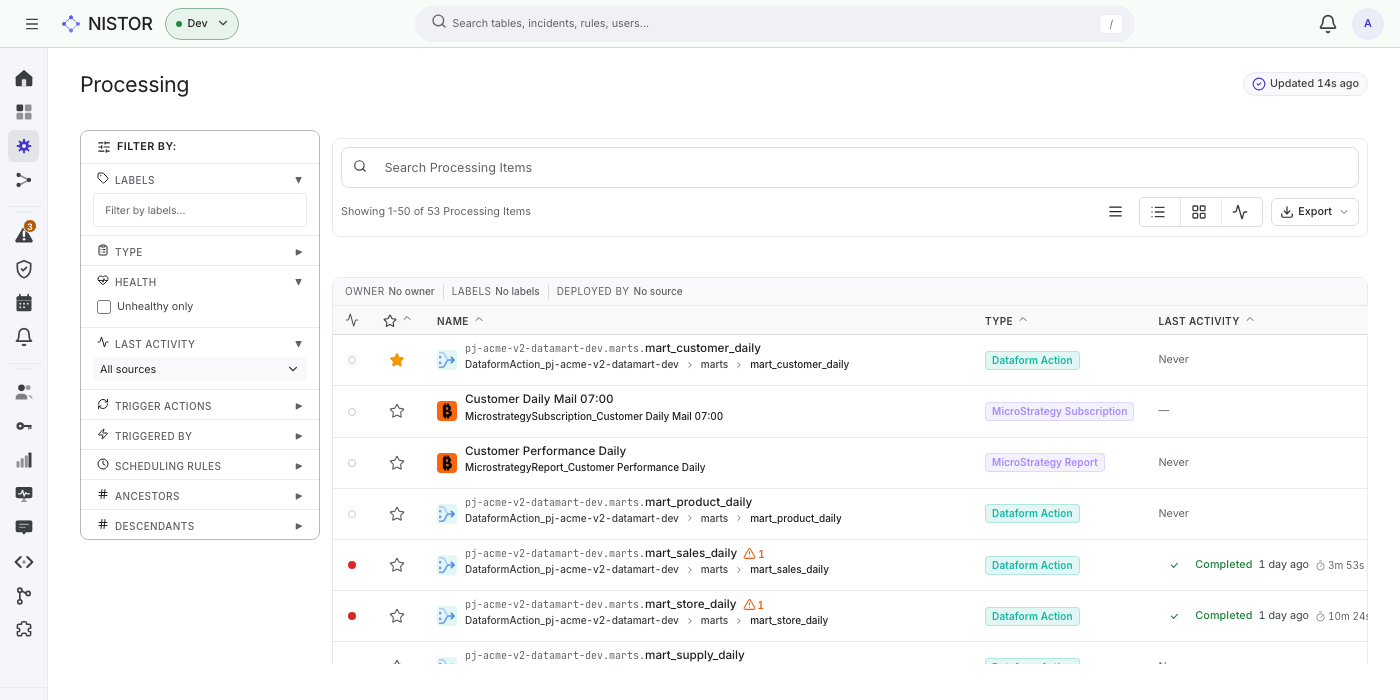
On the quickstart stack, Processing shows 53 items and Dashboards five MicroStrategy dashboards, such as Store Executive Dashboard.
Read a node's page#
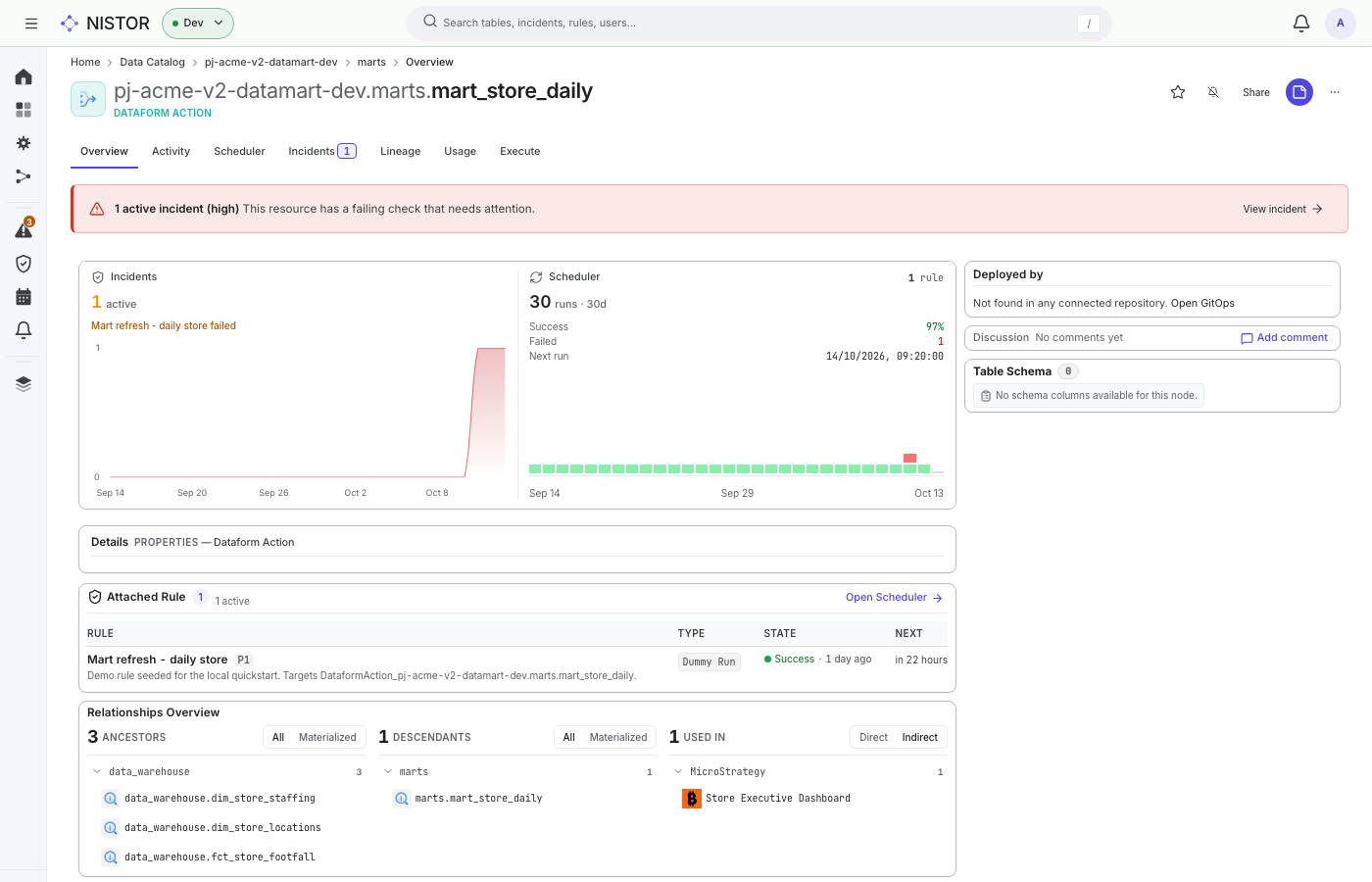
The node page starts with a breadcrumb (project, then dataset), the node's full name and its type, such as DATAFORM ACTION. On the right, a star adds the node to your favourites, and Share opens a single page about the node that you can send to someone.
The tabs:
| Tab | What it shows |
|---|---|
| Overview | A red banner with View incident while an incident is open. Then the incidents of the last 30 days, the rule runs (success rate, failures, Next run), the attached rules with Open Scheduler, the Relationships Overview (ancestors, descendants, and where the node is USED IN), Deployed by, Discussion and the Table Schema |
| Activity | A timeline of the node's input logs, scheduler actions and action runs over a date range, optionally with its ancestors' and descendants' activity; Export JSON saves it |
| Scheduler | The rules that apply to the node, and their runs |
| Incidents | The node's open and past incidents |
| Lineage | The node's graph, upstream and downstream (see Follow lineage) |
| Usage | Reads, distinct readers, queries and their cost, and the top readers, over 7 to 90 days; for a table, also its storage and the partitions written |
| Execute | Run one of the node's actions by hand (see Rules and schedules) |
What you should see#
On the quickstart stack, search for store and open marts.mart_store_daily (the Dataform action). The banner says
1 active incident (high). The Scheduler card shows 30 runs in 30 days, one of them failed, and the next run.
Attached Rule lists Mart refresh - daily store. Relationships Overview shows three ancestors in
data_warehouse, one descendant in marts, and under USED IN the dashboard that reads it, Store Executive
Dashboard.
Next#
- Follow lineage from this node.
- Add the node to your favourites (the star) and find it again under Data Trust (see Data contracts).